
Address
251 Little Falls Drive, Wilmington, DE 19808, United States



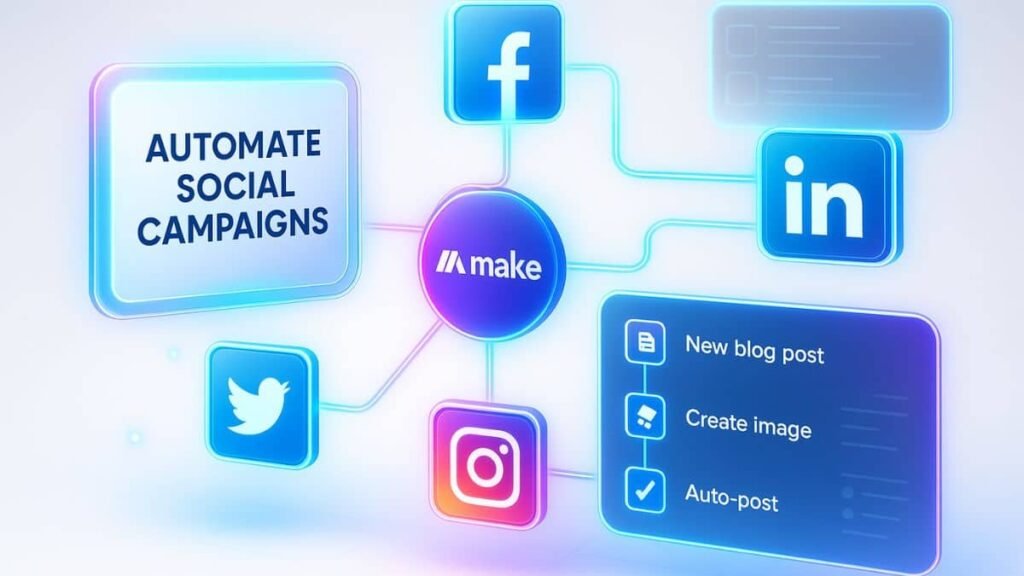
Posting daily across multiple platforms can feel overwhelming, until you discover automation. If you’ve ever wished social media could run itself, this guide is for you. Learn how to automate social campaigns with Make in just five easy steps. From setup to scheduling, we’ll show you exactly how to build a system that saves time and boosts engagement, without sacrificing control.
Table of Contents
Why automating your social campaigns matters more than ever
Social media never sleeps, but you do. With algorithms changing daily and audiences expecting regular content, keeping up manually can feel like a losing game. Automating your social campaigns helps you stay consistent, save time, and focus on strategy rather than repetitive tasks. The best part? Tools like Make.com official overview let you automate with precision and creativity.
Automation doesn’t mean losing the human touch, it means amplifying it. Done right, you can schedule posts, react to triggers, and personalize content at scale. That’s not just efficient; it’s powerful.
What is Make and how does it work?
Make (formerly Integromat) is a no-code automation platform that connects your favorite tools and apps. Think of it like a digital command center—where you design workflows visually and let them run on autopilot.
Whether you’re managing multiple brands or just trying to stay ahead of daily content demands, Make can automate your social media by linking platforms like Facebook, Instagram, Twitter (X), LinkedIn, and more. It supports logic-based flows, filters, and delays, all without writing a single line of code.
It’s especially useful for marketers juggling dozens of tasks. By automating routine actions, you free up time to focus on what matters—strategy, creativity, and audience engagement.
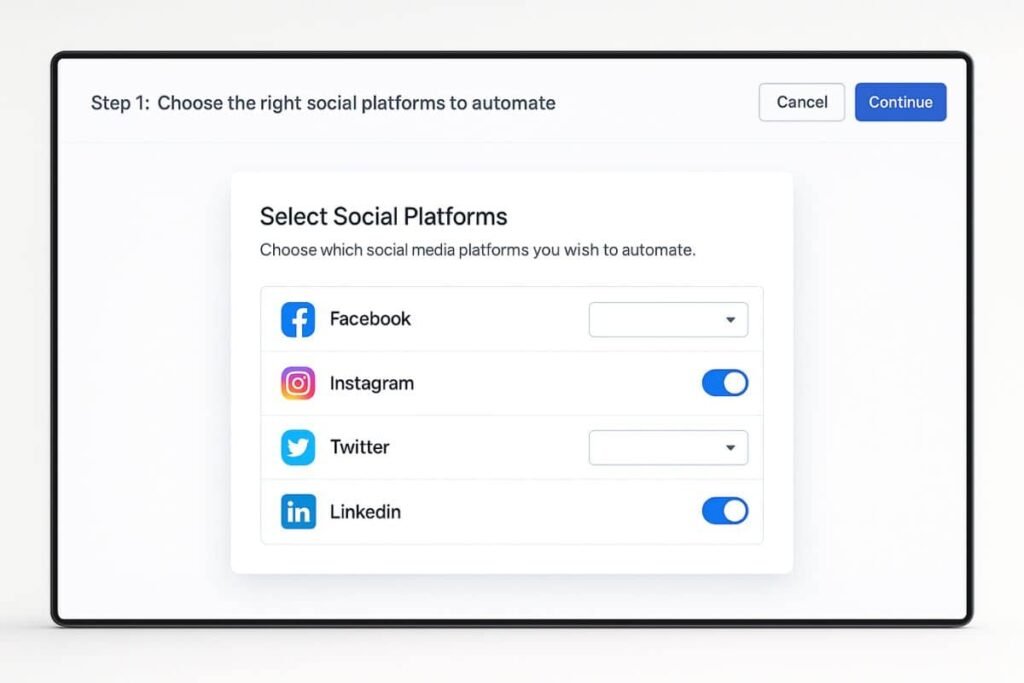
Step 1: Choose the right social platforms to automate
Before diving into workflows, get clear on your platform priorities. Are your leads coming from Instagram Stories or LinkedIn posts? Are you nurturing an audience on Facebook or growing brand awareness on X?
Make supports integration with major platforms, but not all automation is created equal. For example, some social networks have stricter APIs (like Instagram), which may limit posting types or frequency. Choose platforms based on two factors:
- Where your audience is most active
- Where automation will save the most manual effort
Pro tip: Focus on 1–2 channels at first. You can always scale later.
Step 2: Connect Make to your social media accounts
This step is all about enabling Make to access your accounts securely. After signing up for Make, head to the “Connections” tab. Here’s how it works:
- Select the social media app you want to connect (e.g., Facebook Pages).
- Authenticate your account by logging in through the pop-up window.
- Grant necessary permissions for posting, fetching content, or analytics (depending on what your scenario requires).
Make uses OAuth for authentication, so your login credentials are never stored. Once connected, you’ll see the app listed and ready for use in workflows.
Step 3: Design your automation workflow using Make’s visual builder
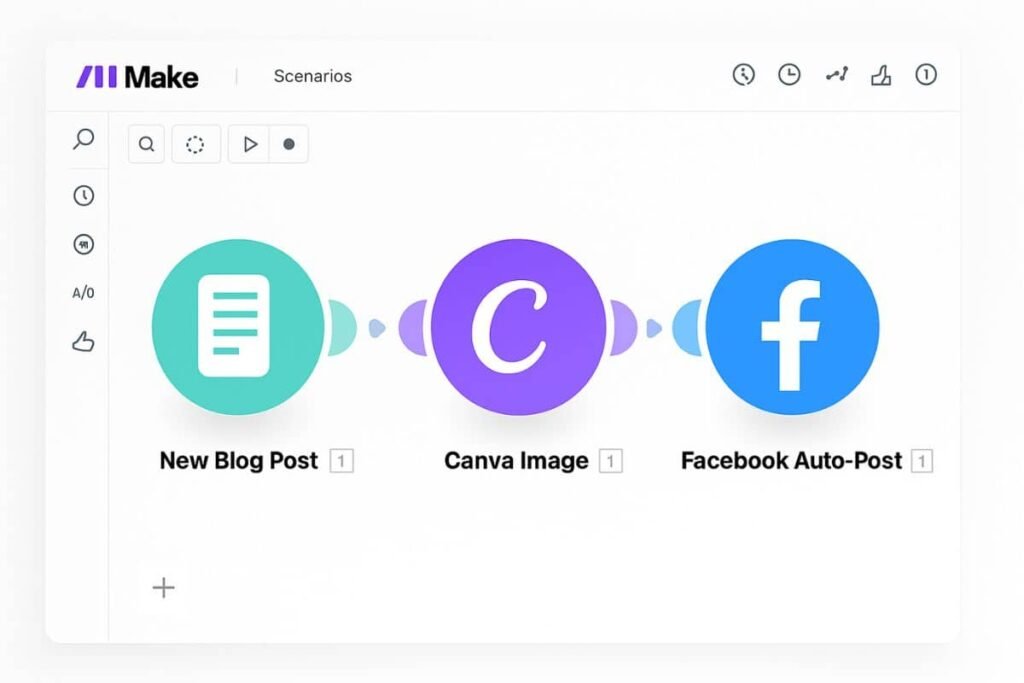
This is where the magic happens. Make’s drag-and-drop interface lets you build workflows (called “scenarios”) like a flowchart. You start with a trigger—something that kicks off the automation—and then link it to one or more actions.
For example, a basic workflow might look like this:
New blog post published → Create image with Canva → Auto-post to Facebook Page
You can add delays, filters, routers, and even error handlers to customize the logic. The visual builder gives you a bird’s eye view of everything happening behind the scenes.
Want inspiration? Check out how automation fits into broader strategies in this related guide: Workflow with AI planning and automation tools.
Step 4: Set triggers, filters, and scheduling logic
Now that your structure is in place, it’s time to define when and how the workflow activates. Make offers a variety of triggers—such as new content published, new row in Google Sheets, or specific time intervals.
Once your trigger is set, you can layer in filters to fine-tune the workflow. For example, you might only want posts scheduled on weekdays, or you could exclude any content that doesn’t contain a specific hashtag.
Then, add a scheduling module to control timing. Want posts to go out every Monday at 9 AM? Or instantly when new content drops? With Make, it’s all flexible and logic-driven.
This is where automation shines. You build the logic once—and it runs forever (or until you tweak it).
Step 5: Test, monitor, and optimize your automation
Before hitting play, always test your scenario. Make includes a simulation mode, so you can see the flow in action before it’s live. Watch each module respond, and ensure data passes through cleanly.
After you activate the workflow, monitor the execution logs. You’ll be able to view:
- Success and error reports
- Which modules triggered
- Time and frequency of executions
This data helps you improve over time. Maybe you realize morning posts perform better, or a step needs refining. Iteration is the key to long-term automation success.
As your experience grows, you’ll find more ways to integrate Make across your digital stack. Want more tools to power your marketing? Don’t miss our guide: Best AI tools for digital marketing.
Common pitfalls to avoid when automating social campaigns with Make
While Make is powerful, there are a few traps new users fall into:
- Overcomplicating workflows: Start simple. Complex doesn’t always mean better.
- Ignoring API limits: Some platforms restrict how often you can post or fetch data.
- Skipping error handlers: Always set fallback logic in case a post fails or data is missing.
Remember, automation isn’t a one-time task, it’s an evolving system. Review and optimize regularly for best results.
Real-world use case: A campaign that ran itself
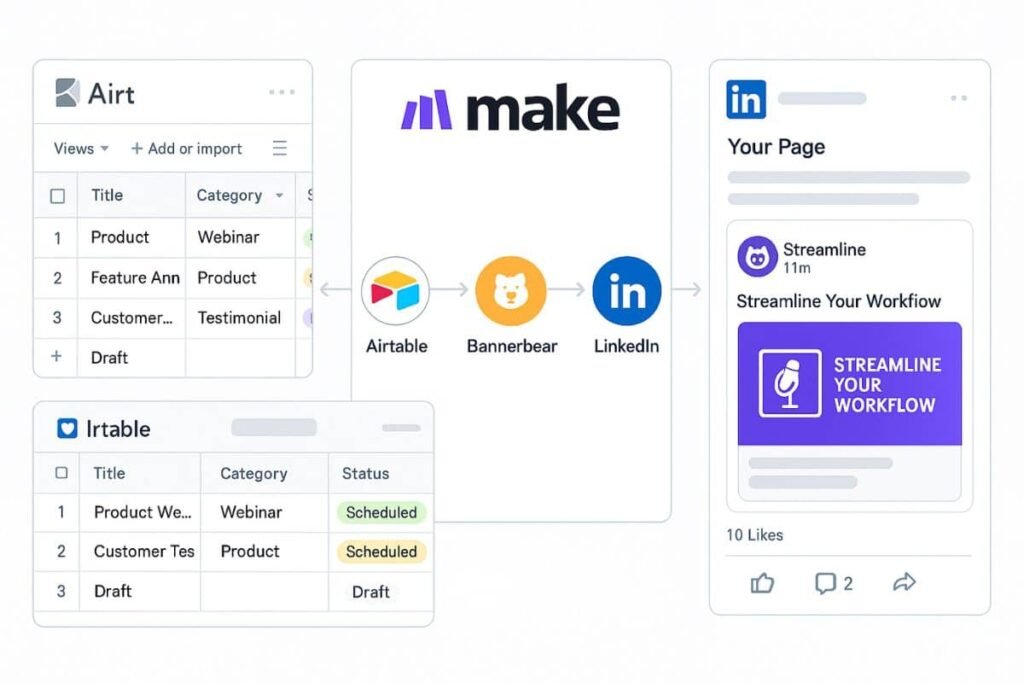
One digital agency used Make to automate content for a SaaS client. Their setup included:
- Content pulled from Airtable
- Custom graphics generated with Bannerbear
- Scheduled posts to LinkedIn, Facebook, and Instagram
The result? They saved 20+ hours per month, increased posting frequency by 40%, and saw a 25% boost in engagement, without touching a single platform manually.
“Make allowed our team to focus on strategy instead of constantly babysitting the content calendar.”
Next steps: Scaling your automation strategy with Make
Once you master the basics, consider building multi-step campaigns with layered logic, A/B testing, and performance tracking. You can even integrate Make with CRMs, email platforms, and analytics tools.
Use Make as the central brain of your marketing machine, linking content creation, approval workflows, publishing, and analytics into one seamless process. The more you automate, the more you’ll discover just how scalable your campaigns can be.
Automation doesn’t replace creativity, it protects it. And with Make, you’ll have the freedom to spend more time thinking big, while the small stuff takes care of itself.
Automating your social campaigns with Make doesn’t just save time, it supercharges your strategy. With visual workflows, smart triggers, and powerful integrations, you can let your content work while you focus on growth. Ready to reclaim your calendar and create with confidence? Start small, iterate often, and let Make do the heavy lifting.